About PHP2Shell
PHP2Shell is the name given to two critical vulnerabilities in PHP, tracked as CVE-2026-109618 and CVE-2026-109619. Both are use-after-free flaws (CWE-416) with a CVSS v4.0 score of 9.2 (Critical), and both can let an unauthenticated attacker run code remotely on the server (RCE). Because the flaws are in PHP itself rather than in a specific application, every web application running on an affected PHP version is exposed, no matter how securely the application code is written.
Vulnerability Details
CVE-2026-109618: When PHP runs out of memory, it aborts the request using longjmp().
During cleanup, it can treat partially initialized request memory as valid. An attacker can trigger this with a specially crafted multipart/form-data POST request, before any application code runs.
CVE-2026-109619: In persistent workers, request-owned global state (error, session, and upload progress data) can outlive the memory it points to. A later request handled by the same worker then uses this freed memory.
Affected Versions and Environments
Affected versions: All PHP versions from 5.4 onward that are older than 8.2.35, 8.3.36, 8.4.27 and 8.5.12, including the end-of-life 7.x, 8.0 and 8.1 branches.
Affected server setups: mod_php, PHP-FPM, php-cgi, FrankenPHP and LiteSpeed.
Fixed versions: 8.2.35, 8.3.36, 8.4.27, 8.5.12 or later. End-of-life branches have no listed fix and should be upgraded to a supported branch.
Mitigation
The recommended fix is to update PHP to a patched version. If an update cannot be applied right away, disabling the session.upload_progress feature (session.upload_progress.enabled = Off) is accepted as a temporary mitigation.
Scope of This Document
This document explains how to use SecHard to find and fix PHP2Shell across your environment: identifying systems that run PHP, checking installed versions and service statuses, importing and enabling the PHP2Shell scan policy, running an automated Audit, and applying Remediation to fix the vulnerability.
PHP2Shell Detection
Identifying Systems Using PHP with the Software Asset Report
1. From the left menu, go to the Reports > Asset page.
2. In the Report Type field, select Software Asset Report
3. Select the checkbox next to the Resource column to select all resources.
4. Click the Download Report button.
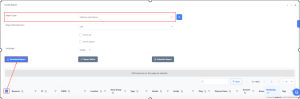
5. In the confirmation window, enter the reason for downloading the report in the Reason field.
6. Click Yes to confirm and start the report download.
Identifying PHP Services with the Service Asset Report
1. From the left menu, go to the Reports > Asset page.
2. In the Report Type field, select Service Asset Report.
3. Select the checkbox next to the Resource column to select all resources.
4. Click the Download Report button.
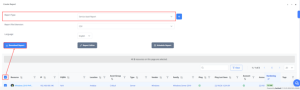
5. In the confirmation window, enter the reason for downloading the report in the Reason field.
6. Click Yes to confirm and start the report download.
PHP2Shell Detection
Viewing Detected PHP Versions and Service Statuses
1. From the left menu, go to the Resource > Resources page.
2. From the listed resources, Click the relevant resource name to open details.
3. From the top menu, go to the Assets tab.
4. Go to the Software > Software page to view the PHP versions installed on the resource.
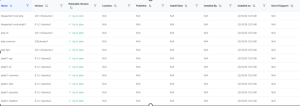
5. Then, from the top menu, go to the Software > Service page.
6. The running status of the PHP services on the resource is displayed. Running services.
Importing the Automated Scan Policy for PHP2Shell Detection
1. From the left menu, go to the Settings > Recipe > Benchmark page.
2. Click the Import button.
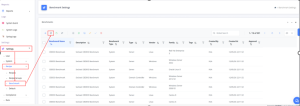
3. Select the shared Benchmark to be imported.
4. Enter the password shared specifically for the selected Benchmark in the corresponding field.
5. Click Import to complete the Benchmark import.
Enabling the Scan Policy on the System
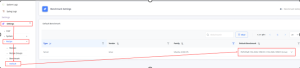
1. From the left menu, go to the Settings > Recipe > Default page.
2. Select the Benchmark to be used by default for the relevant Family to be checked.
SecHard Automated Audit on Systems Running PHP
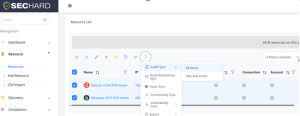
1. From the left menu, go to the Resource > Resources page.
2. To scan all resources, select the checkbox next to the Name header.
3. Click the Select All X Resources option displayed at the top.
4. To scan specific resources, select the checkbox next to those resources.
5. Click the three-dot menu and select Audit Sync > All Items.
6. In the confirmation window, click Yes to start the Audit process for all selected resources.
Checking and Patching the Detected PHP2Shell Version
1. On the Resource > Resources page, click relevant resource to open the resource details page.
2. From the top menu, go to the Security Zone > Hardening page.
3. To view the details of all controls, click the Expand All button.
4. To re-run the relevant security control, click the Sync button.
5. To view the script used in the Audit process, click the Highlight button.
6. To remediate the detected security vulnerability, click the Remediation button.
7. To view the Remediation script to be applied, click the Show button.
8. To start the Remediation process for the relevant security vulnerability, click the Run button.